
I. Introduction
As a developer, you might work with various different databases, and DBeaver is a good choice for it.
But one boring thing is you might write the same code every day — so the snippet is the hero for it.
If you have a chance to use SQL Prompt (a paid plugin for SQL Server Management Studio), you will love it.
Luckily, DBeaver allows configuring snippets in the same way.
And I will show you how in the section below.
II. How to generate or import the snippet
1. How to generate a new snippet
Step 1
From the menu go to:
Window → Preferences → Editors → SQL Editor → Templates
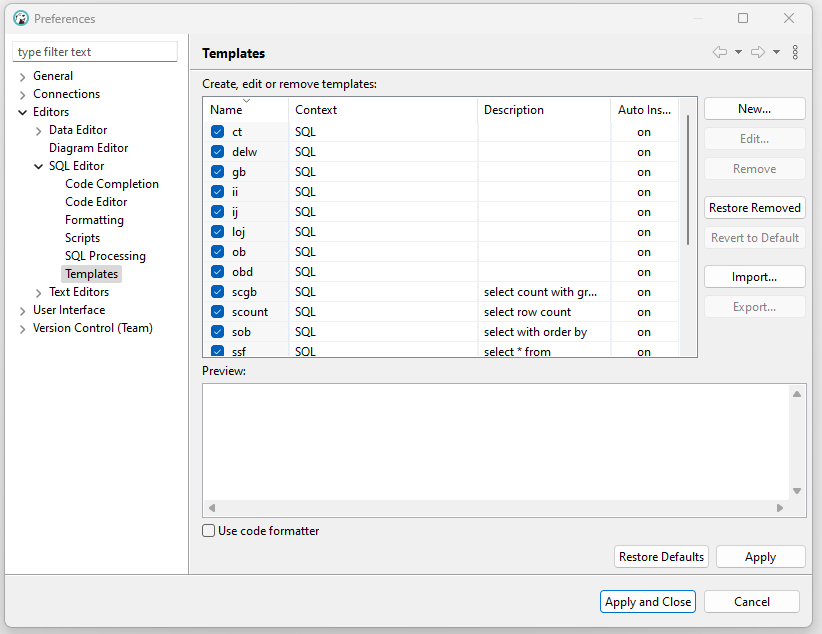
You will see a new window as below:
Step 2
As you see in the new window:
- Left side: all templates that are created or imported.
- Right side: buttons to create / update / remove / import …
Step 3
Create a new snippet/template.
Click the button New.. → a new window will display:
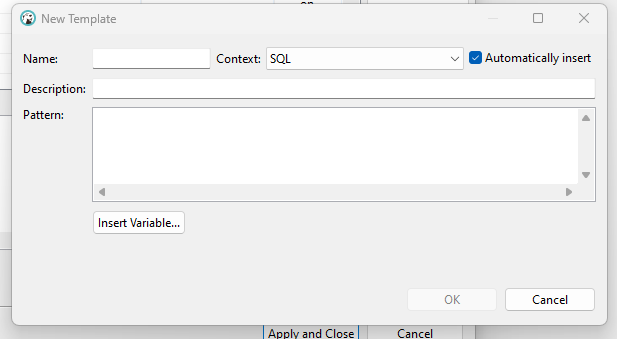
In the new window:
- Name → the shortcut to trigger the script you want.
- Pattern → the command that will display when you type the shortcut.
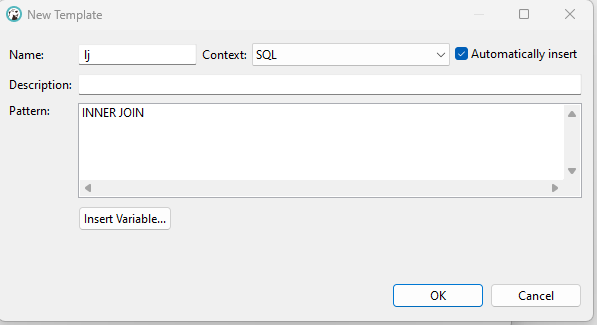
- Insert Variable.. → shows all built-in variables to insert into your template.
Example window:
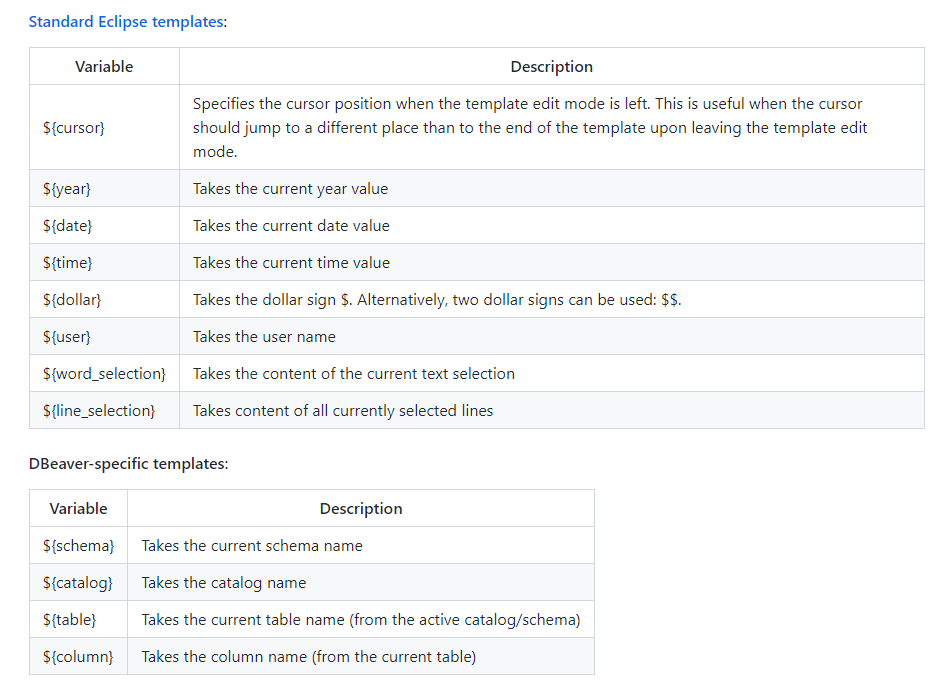
👉 This example means:
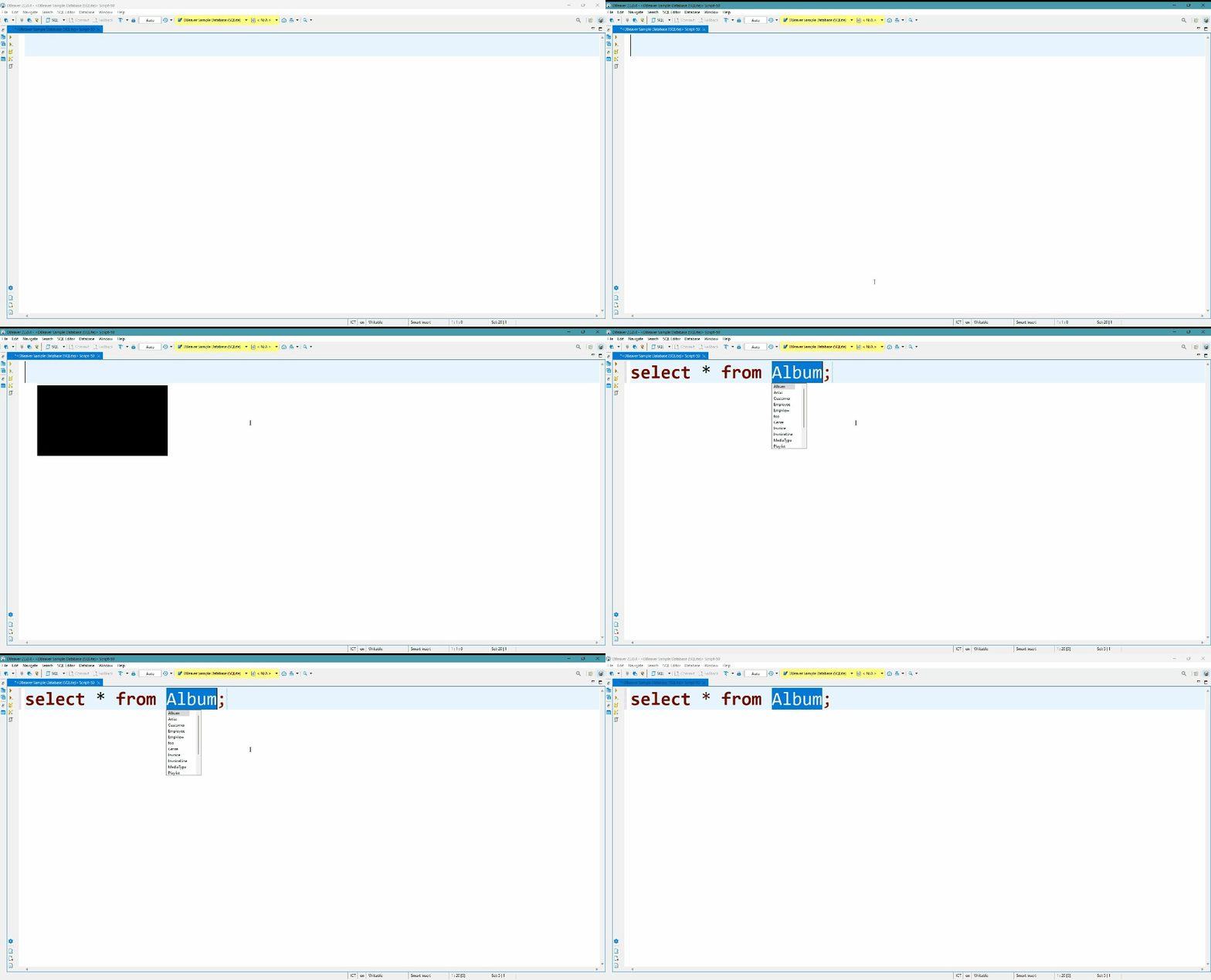
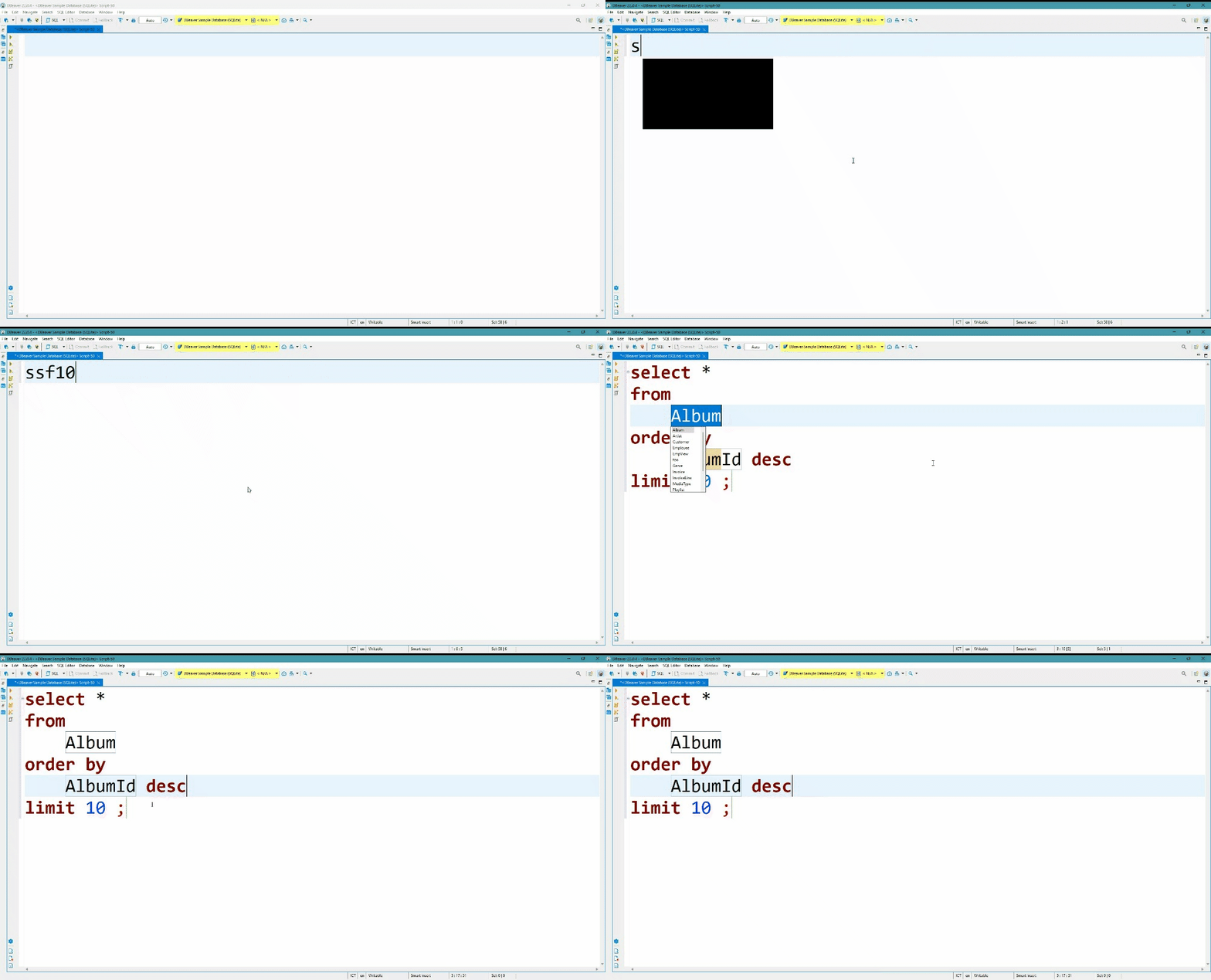
When I type lj and press Tab, the INNER JOIN statement will be filled automatically.
Demo
2. How to import the existing snippet
Click the button Import → a new window will display.
Locate the folder where your template files are stored.
In this repository’s snippets folder, I created a bunch of snippets inspired by the SQL Prompt snippet.
✨ If you wish to download my template, please visit my GitHub:
Tim90s
III. References
Below are the links used to create the above content:
